Let SnapRender through your firewall
If your site sits behind Cloudflare or another firewall, it may answer SnapRender with a security check instead of your page. Your captures then show Just a moment... or Performing security verification. One rule in Cloudflare fixes it in about two minutes, on any plan, including the free one. Your site stays protected from everyone else.
Updated October 6, 2026
On this page
How it works
Firewalls challenge visitors they do not recognize, and SnapRender is sometimes not recognized by a strict firewall, so it shows the check page. A rule that recognizes SnapRender, by its address or by a secret header that only your captures send, lets your captures reach the real page.
The fix: allow SnapRender's IP address in Cloudflare
One rule, about 2 minutes, available on every Cloudflare plan, free included.
The fix
Allow SnapRender's IP address
Works on every Cloudflare plan, free included. It lets SnapRender past every security check Cloudflare offers: custom rules, Bot Fight Mode, Browser Integrity Check and Under Attack mode.
Copy our address
187.77.75.63
Every capture comes from this address. Also as JSON and plain text.
This address may change. If it does, we will tell you by email and with a notice on our website, so you can update your rule.
Open the IP access rule form in Cloudflare
- Open Cloudflare and, under Domains, click your site.
- Copy the address from your browser's address bar and paste it here:
The button opens your site's New IP access rule page. Nothing you paste leaves this page.
Or by hand
- In Cloudflare, under Domains, click your site.
- In the left menu, click Security, then Security rules.
- The address in your browser now ends in
/security/security-rules. Add/ip-access-rules/createto the end and press Enter. The page New IP access rule opens.
- Domains
- Your site
- Security
- Security rules
- + /ip-access-rules/create
Why not the Create rule button? Its menu shows Custom rules, Rate limiting rules, Managed rules and Templates; IP access rules appears there only after your site has one. Do not use Custom rules for this: its actions are Managed Challenge, Block, Non-Interactive Challenge, Skip and Interactive Challenge, with no Allow.
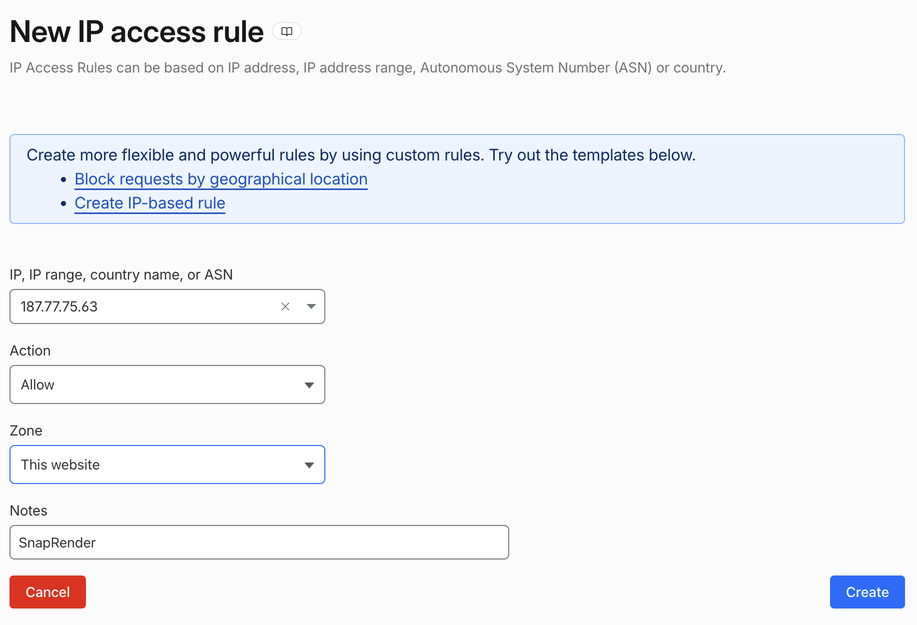
Fill it in and create the rule
- IP, IP range, country name, or ASN
- 187.77.75.63
- Action
- Allow (it starts as Block, so change it)
- Zone
- This website
- Notes
- SnapRender
Type or paste the address and press Enter, then choose Create. This is how it looks in Cloudflare:
Check that it works
Wait about a minute for Cloudflare to apply the rule, then capture your page with our free screenshot tool. It uses the same address as the API, so if it shows your page, your API captures will too. No account needed.
Open the free screenshot toolStill seeing "Just a moment..."? Check that the rule lists 187.77.75.63, This website and Allow (not Block), and that it is Active.
Done. If our address ever changes, we will tell you by email and with a notice on our website, and update /ips.json.
Advanced, optional
Allow only your own captures: secret header
Most sites do not need this. The IP rule above lets every SnapRender capture through; this stricter setup lets through only captures from your account. SnapRender adds a header with your secret value to every capture of your domains, and your firewall lets that value through.
Needs: a paid Cloudflare plan (Pro or higher), or the free plan with Bot Fight Mode switched off, because no rule can skip Bot Fight Mode.
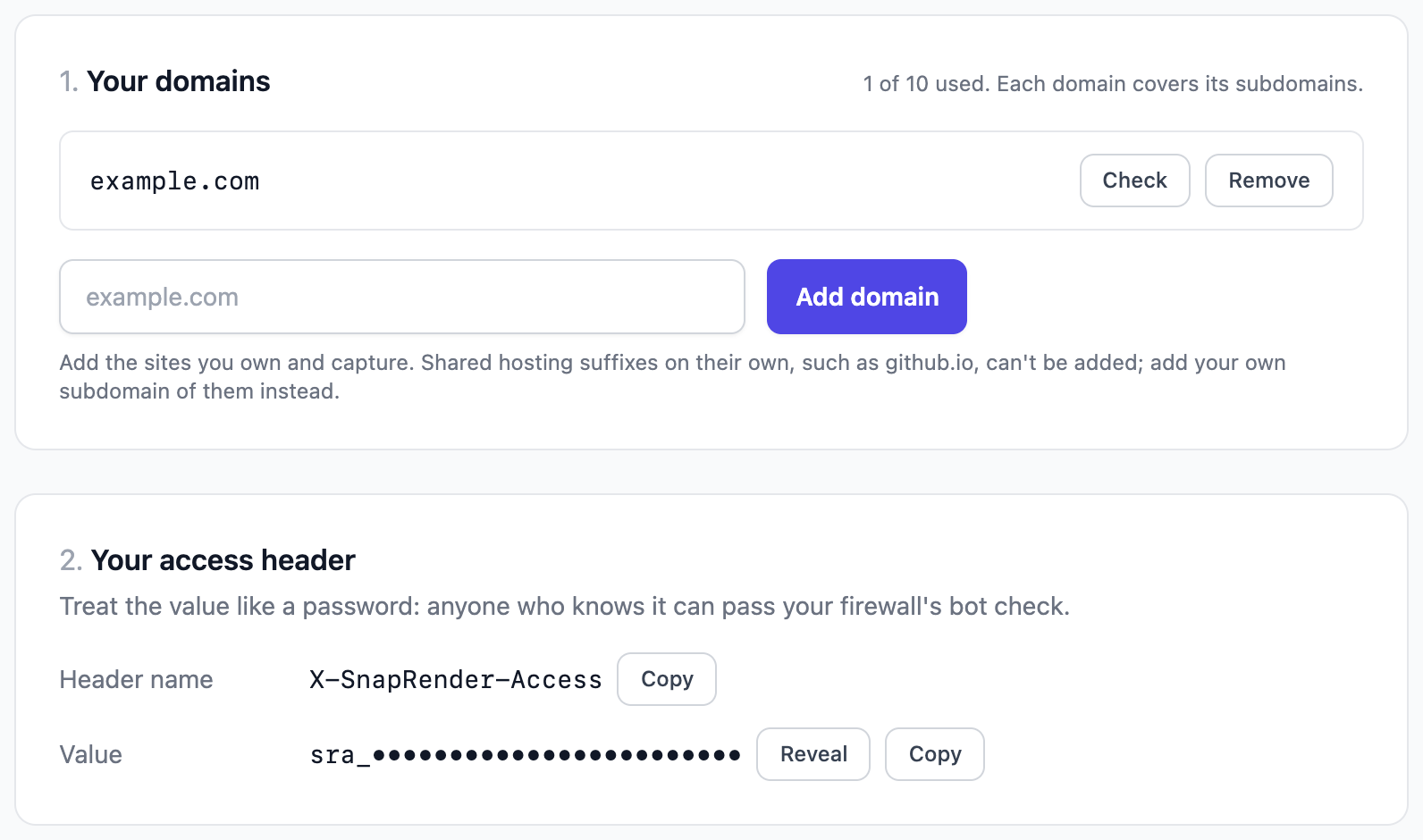
Add your domain in Site access
Add your domain, such as example.com (it covers its subdomains too), and copy the rule expression shown there.
Open a new custom rule in Cloudflare
Cloudflare asks you to sign in and pick your site, then opens the new rule form. The same page by hand:
- Your site
- Security
- Security rules
- Create rule
- Custom rules
Fill in the rule
- Rule name
- Allow SnapRender
- Expression
- Choose Edit expression and paste the expression from Site access
- Action
- Skip
- WAF components to skip
- All remaining custom rules (at least this one; tick the others your plan shows)
- Execution order
- First
Then choose Deploy and confirm, and give Cloudflare about a minute to apply it. The expression looks like any(http.request.headers["x-snaprender-access"][*] eq "sra_...") with your own value.
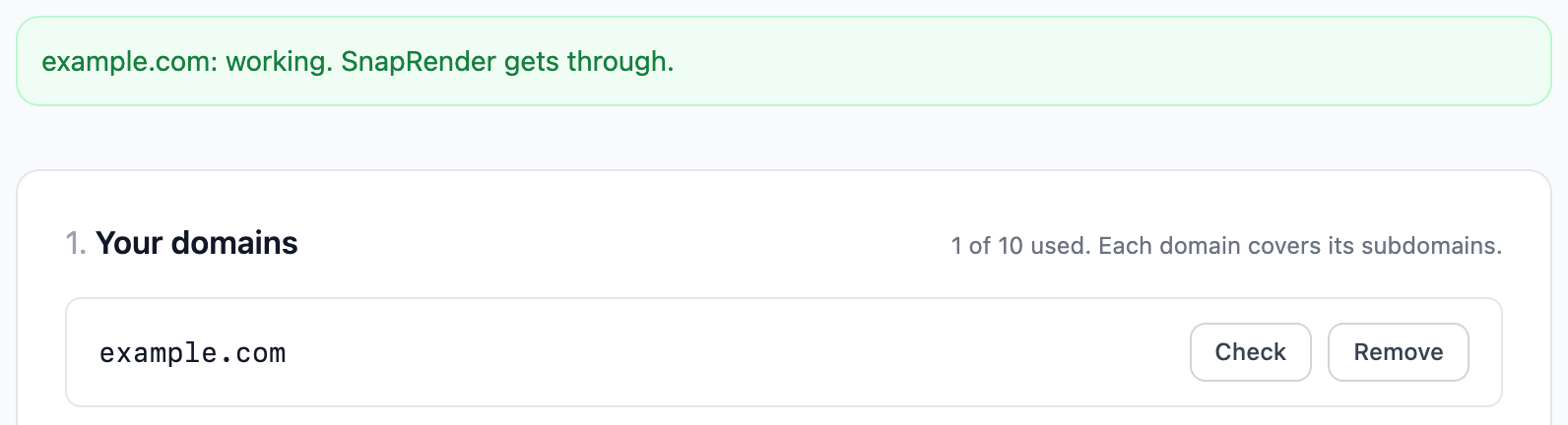
Press Check in Site access
SnapRender loads your domain the way a capture does and tells you whether it gets through.
On the free plan with Bot Fight Mode on, this rule cannot work: turn Bot Fight Mode off in Cloudflare's security settings, or use the IP rule above.
Done. Your captures of these domains send the header from now on. It keeps working if our address changes.
Other firewalls and hosts
Most firewalls and hosting platforms can allow a request by its IP address or by a request header. Either allow 187.77.75.63, or allow requests whose X-SnapRender-Access header equals your value from Site access. Then take a capture, or press Check in Site access, to confirm.
For developers: send headers per request
Site access needs no code. If you prefer to manage a secret yourself, send it with each capture in the headers object of POST /v1/screenshot. Headers go only to the target's domain and its subdomains, never to other sites, and are refused in GET requests because URLs end up in logs.
curl -X POST https://app.snap-render.com/v1/screenshot \
  -H "X-API-Key: $SNAPRENDER_KEY" \
  -H "Content-Type: application/json" \
  -d '{"url": "https://example.com", "headers": {"X-Screenshot-Secret": "your-secret"}}' \
  --output example.png
Limits and reserved names are in the API reference.
Keep it safe
- Treat the header value like a password. Do not put it in public code or pages.
- SnapRender sends it only to the domains you register and their subdomains, never to other sites, even after a redirect.
- If it may have leaked, create a new value in Site access and update your rule. The old value stops working at once.
- The IP rule trusts every SnapRender capture. Use the advanced header option if only your own captures should pass.
FAQ
Why do my captures show "Just a moment..." or "Performing security verification"?+
That is a firewall security check page. Your site's firewall (often Cloudflare) asks visitors it does not recognize to pass a check first, and SnapRender is sometimes not recognized by a strict firewall. SnapRender captures exactly what the site returns, so the capture shows the check. Allowing SnapRender's IP address fixes it.
Does this work on the free Cloudflare plan?+
Yes. Allowing an IP address is available on every Cloudflare plan, free included, and it lets SnapRender past every security check Cloudflare offers on that plan: custom rules, Bot Fight Mode, Browser Integrity Check and Under Attack mode.
I cannot find "IP access rules" in the Create rule menu.+
Cloudflare only shows it after your site has at least one IP access rule; until then the Create rule menu lists Custom rules, Rate limiting rules, Managed rules and Templates. Use step 2: paste your site's Cloudflare address to get a direct link, or go to Security, then Security rules, and add /ip-access-rules/create to the end of the address in your browser.
Do I need the secret header too?+
No. The IP address rule is enough. The secret header is an optional, stricter setup for people who want only their own captures to pass, and it needs a paid Cloudflare plan or Bot Fight Mode switched off.
Does this weaken my site's protection?+
No. Everyone else still gets your full protection. The IP rule lets through requests from SnapRender's address, which includes captures made by other SnapRender users. The secret header lets through only requests that carry your value, which only your own captures send.
Do I have to change my API calls?+
No. Once the rule is in place, your existing captures show your page. With the advanced header option, SnapRender adds your header to every capture of your domains automatically.
Can SnapRender get past a security check without a rule?+
No. Security checks are the site owner's decision, and SnapRender respects them. When you own the site, one rule lets your captures through.
Does my header ever reach another website?+
No. It goes only to the domains you register and their subdomains. If a page redirects or loads content from another site, those requests never carry it.
My scheduled captures reported a big change after I added the rule.+
Expected. The previous captures were the check page; the first capture after the rule shows your real page. Later captures compare as usual.
I use a different firewall or host.+
Most firewalls can allow a request by IP address or by a request header. Allow 187.77.75.63, or allow requests whose X-SnapRender-Access header equals your value from Site access.